

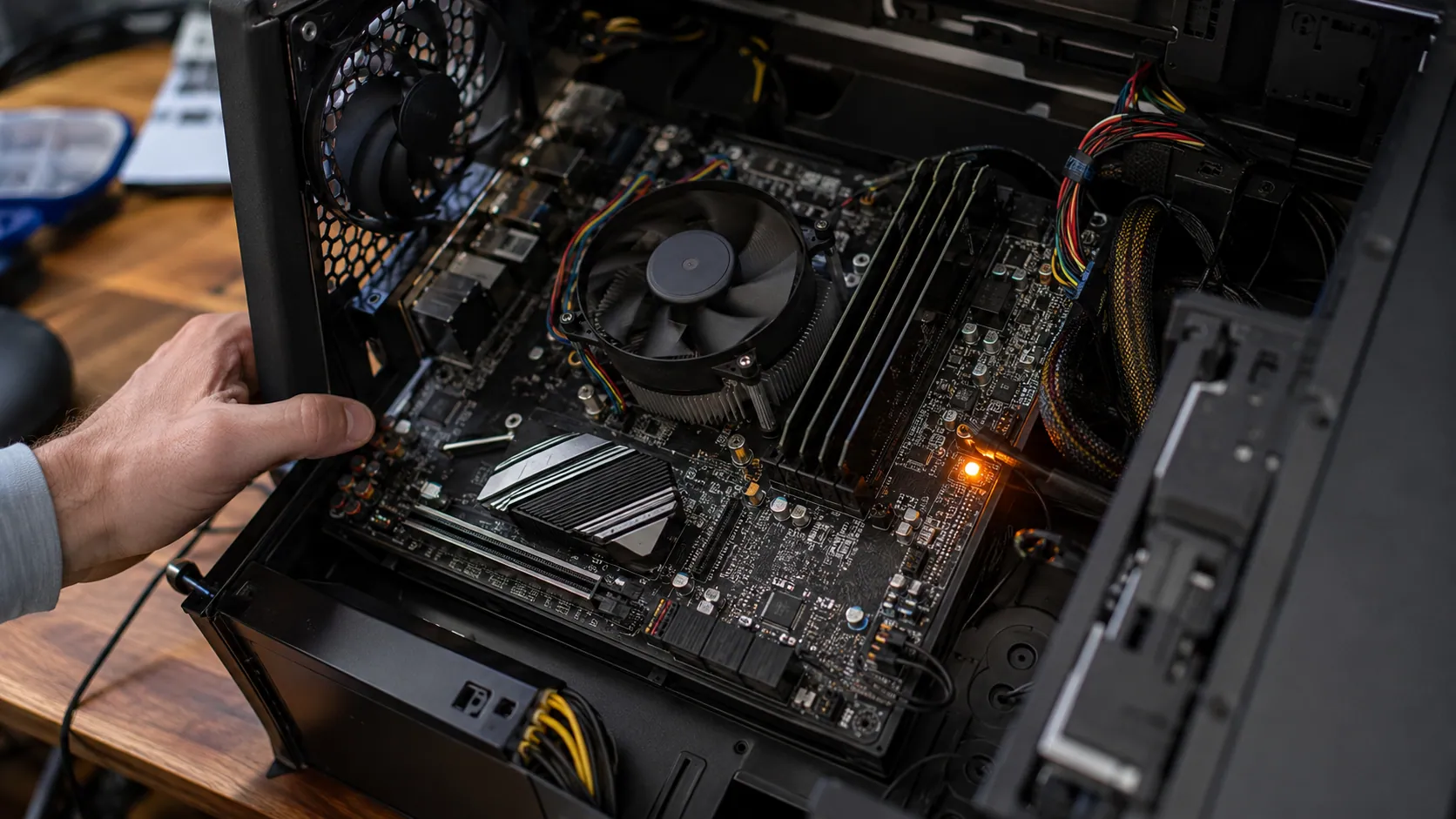
What does it mean when the motherboard pulsing orange light? In most cases, a motherboard pulsing orange light means your PC is receiving power, but the board may be showing a diagnostic warning, a standby power light, a RAM/DRAM issue, a power supply problem, or a failed POST check. The exact meaning depends on your motherboard brand, the LED label, and whether the computer boots normally or shows no display.
The important thing is this: an orange light on motherboard does not automatically mean the motherboard is dead. Many users panic when they see an orange motherboard light, especially on a new gaming PC build, but the cause is often something simple like RAM not seated properly, a loose 24-pin motherboard power cable, a loose 8-pin CPU power cable, or a BIOS setting that needs to be reset.
This guide explains what a motherboard orange light means, how to tell whether it is serious, and how to fix it step by step.
Quick Answer: What Does a Pulsing Orange Motherboard Light Mean?
A motherboard pulsing orange light usually means one of six things: the board is showing standby power, the light is part of RGB or cosmetic lighting, the system is stuck during POST, the DRAM/RAM is not detected correctly, the PSU is not delivering stable power, or the board is warning you about a CPU, GPU, BIOS, or boot device issue.
The first thing you should do is check whether the light is labeled CPU, DRAM, VGA, or BOOT. These labels are more important than the color itself. For example, if the orange light is beside DRAM, the issue is probably related to RAM modules, DIMM slots, memory training, or RAM compatibility. If the orange light is near the PCIe slot and has no diagnostic label, it may simply be cosmetic LED lighting.
A pulsing orange light can also appear when the PC is off because many motherboards still receive standby power. This lets features like RGB lighting, USB charging, or wake functions remain active.
So the best short answer is: a pulsing orange light is a clue, not a final diagnosis. You need to check the LED label, the motherboard manual, and the symptoms around it.
Pulsing Orange vs Solid Orange vs Blinking Orange Light
Not all orange lights mean the same thing. A pulsing orange light, solid orange light, and blinking amber light can point to different problems.
| Light Behavior | Possible Meaning | What to Check First |
| Pulsing orange light | Standby power, RGB breathing effect, or repeated POST loop | Check LED label and motherboard manual |
| Solid orange light | Often a DRAM/RAM detection issue on some boards | Reseat RAM and test one stick |
| Blinking orange/amber light | Possible power supply issue, especially on OEM desktops | Check PSU, cables, and power button code |
| Orange light when PC is off | Normal standby power or decorative lighting | Check BIOS RGB/ErP settings |
| Orange light with no display | Failed POST, RAM issue, GPU issue, BIOS issue, or CPU problem | Check DRAM, VGA, CPU, and BOOT LEDs |
A solid orange light near the RAM area often makes users think the motherboard has failed, but it may only mean the board cannot complete DRAM initialization. A blinking orange light, especially on a Dell or other prebuilt desktop, may be a power diagnostic code. A pulsating orange light motherboard pattern can also be normal if it is simply a decorative “breathing” LED.
The key is to look at where the light is located and whether the PC can pass the Power-On Self-Test, also called POST.
First, Check Whether It Is a Debug LED or Cosmetic RGB Lighting
Before troubleshooting hardware, confirm whether the light is a real motherboard debug LED or just motherboard RGB lighting.
Many motherboards have decorative LEDs near the PCIe slot, audio area, chipset heatsink, or rear I/O cover. These lights may glow orange, pulse slowly, or stay on even when the system is powered off. If the light is not labeled CPU, DRAM, VGA, or BOOT, it may not be an error at all.
This is especially common when users see an orange light near PCIe slot cosmetic lighting. Some boards use a semi-transparent PCIe retention clip or decorative line that glows when standby power is active. In that case, the light may be controlled through BIOS settings, motherboard software, or RGB tools.
A true diagnostic LED is different. It is usually small, located near the board edge or RAM area, and labeled with a component name. If the LED is labeled DRAM, CPU, VGA, or BOOT, the motherboard is telling you which part of the startup process is failing.
So before assuming the worst, ask yourself: Is this a warning light, or is it just RGB?
What the Motherboard LED Labels Mean: CPU, DRAM, VGA, and BOOT
Modern motherboards often include debug lights motherboard systems such as ASUS Q-LED, MSI EZ Debug LED, or similar status LEDs from Gigabyte and other brands. These lights help identify where the boot process is stuck.
| LED Label | What It Usually Points To | Common Symptoms |
| CPU | Processor, CPU socket, CPU power cable, or BIOS compatibility | Fans spin, no POST, no display |
| DRAM | RAM seating, RAM compatibility, memory training, or faulty RAM | Orange DRAM light, no display |
| VGA | Graphics card, PCIe slot, display cable, or GPU power | Monitor no signal |
| BOOT | SSD, HDD, NVMe drive, or boot order | BIOS opens, but OS does not load |
If your board has a DRAM light motherboard warning, start with the RAM. Make sure the sticks are fully clicked into the correct DIMM slots, usually DIMM slot A2 and DIMM slot B2 for two-stick setups. If the light is labeled CPU, check the 8-pin CPU power cable, CPU seating, and whether your BIOS supports your processor. If the light is labeled VGA, check your graphics card, PCIe x16 slot, HDMI, DisplayPort, and GPU power cable.
The most important rule is simple: the LED label matters more than the LED color.
Common Causes of a Motherboard Pulsing Orange Light
A motherboard orange light can come from several different problems. Here are the most common causes.
RAM or DRAM Detection Problem
A RAM issue is one of the most common reasons for an orange DRAM light. This can happen when the RAM sticks are not fully seated, placed in the wrong DIMM slots, incompatible with the motherboard, or unstable after enabling XMP or EXPO.
If the PC turns on but shows no display output, remove the RAM and reinstall it firmly until both clips lock. Then try booting with one RAM stick at a time. Test different slots if needed. A single faulty stick or dead RAM slot can stop the system from completing POST.
Power Supply or Loose Cable Problem
A power supply issue can also cause an orange light motherboard issue. The board may receive enough power to light up, but not enough stable power to boot.
Check the 24-pin motherboard power cable, the 8-pin CPU power cable, and any 6+2 pin PCIe connector going to the GPU. Make sure each cable is fully seated. If you use a modular PSU, check the PSU side too. A loose cable can cause fans to spin while the system still fails to boot.
BIOS, CMOS, or Firmware Issue
A BIOS problem or corrupted setting can trigger a stuck orange light, especially after a RAM upgrade, CPU upgrade, or failed overclock. In this case, clear CMOS using the jumper or by removing the CMOS battery CR2032 for a few minutes.
A BIOS update may also help if your CPU or RAM is not fully supported by the current firmware. Some boards include BIOS FlashBack, which lets you update BIOS using a FAT32 USB drive through a special BIOS FlashBack USB port.
CPU, Socket, or Cooler Pressure Issue
Sometimes a light that looks like a RAM problem is actually caused by the CPU. This is because the memory controller is inside the processor on many modern systems. A badly seated CPU, bent socket pins, or uneven cooler pressure can cause a DRAM light to stay on.
If you recently installed a processor like a Ryzen 5 5600G or Intel Core i7-12700K, check CPU compatibility, socket condition, and cooler mounting pressure.
GPU or Display Output Issue
If the board shows an orange or white light and the monitor says no signal, the issue may be related to the GPU or display connection. Make sure your monitor cable is connected to the graphics card, not the motherboard, unless you are using integrated graphics or iGPU.
Reseat the graphics card in the PCIe x16 slot, reconnect PCIe power cables, and try another cable or monitor. If your CPU has integrated graphics, remove the GPU and test from the motherboard display output.
Boot Device or Storage Issue
A BOOT light motherboard warning means the system may pass CPU, RAM, and GPU checks but cannot find a valid boot device. This can happen with a loose M.2 SSD, failed NVMe drive, unplugged SATA cable, or wrong boot order in BIOS.
Why the Orange Light Appears With No Display
A motherboard orange light no display problem usually means the PC is failing before it reaches BIOS or Windows. The fans may spin, the keyboard may flash briefly, and the RGB may turn on, but the system does not complete POST.
This is common after building a new PC, installing new RAM, moving the system, cleaning the case, or upgrading the GPU. The most likely causes are RAM not detected, GPU not seated, CPU power cable loose, or BIOS compatibility issue.
If you see an orange light and your monitor has no signal, check these basics first. Make sure the monitor is on the correct input. Try both HDMI and DisplayPort if available. If you have a dedicated GPU such as an RTX 3050 or RX 580, plug the display cable into the GPU, not the motherboard.
If the system still shows no display, remove extra USB devices, disconnect storage drives temporarily, and try booting with one RAM stick. The goal is to reduce the PC to the fewest parts needed to POST.
Brand-Specific Orange or Amber Light Meanings
Different brands use orange or amber lights in different ways. This is why you should never assume one universal meaning.
| Brand/System | What Orange or Amber May Mean | What to Check |
| ASUS | Often related to Q-LED status, especially DRAM if labeled | RAM, DIMM slots, BIOS |
| MSI | EZ Debug LED points to CPU, DRAM, VGA, or BOOT | Read the LED label |
| Gigabyte | Status LEDs may identify DRAM, CPU, VGA, or BOOT | Manual and board label |
| Dell | Blinking amber often relates to power or hardware fault codes | PSU and diagnostic blink pattern |
| HP/Lenovo | Amber/orange lights may follow model-specific blink codes | Support manual |
On an ASUS motherboard orange light, especially an ASUS Strix B550-F, an orange LED near DRAM often leads users to check memory first. On an MSI Pro Z790-P WiFi DDR4, the MSI EZ Debug LED system can show whether the problem is CPU, DRAM, VGA, or BOOT.
Dell systems are different because many users are not looking at a motherboard LED but a blinking amber power light on the case. A Dell amber pattern, such as 3 amber blinks or 6 white blinks, can be a diagnostic code. In those cases, the exact blink pattern matters.
For any brand, the safest answer is: check the motherboard manual or support page for your exact model.
DDR5, AM5, XMP, and EXPO: When Orange DRAM Light May Be Memory Training
If you are using DDR5 RAM or an AM5 system, a temporary orange DRAM light may appear during memory training. Memory training is the process where the motherboard tests RAM settings before booting. This may happen after the first build, after clearing CMOS, after updating BIOS, or after enabling XMP or EXPO.
In some cases, you may need to wait several minutes. A first boot can feel slow, especially if the board is testing DDR5 timings. However, if the orange DRAM light stays on indefinitely, the system keeps rebooting, or there is still no display after a long wait, you should troubleshoot.
Start by turning off XMP or EXPO, clearing CMOS, and using default RAM speeds. Then test one RAM stick in DIMM slot A2. If it boots, add the second stick in DIMM slot B2. Also check the motherboard’s RAM QVL compatibility list, especially if you are using high-speed DDR5 kits.
A pulsing orange light during memory training is not always a failure, but a stuck orange light usually needs action.
Step-by-Step Troubleshooting Checklist for Orange Motherboard Light
Use this orange motherboard light troubleshooting checklist before replacing parts.
Step 1 — Turn Off the PC and Check the LED Label
Shut down the PC, switch off the PSU, and unplug the power cable. Look closely at the orange light. Is it labeled DRAM, CPU, VGA, or BOOT? If yes, troubleshoot that component first. If there is no label and the light is near decorative areas, it may be RGB lighting.
Step 2 — Reseat the RAM and Try One Stick
Remove the RAM and reinstall it firmly. You should hear or feel the clips lock. If you have two sticks, try one stick at a time in DIMM slot A2. If that fails, test another slot. This is one of the most effective fixes for orange light on motherboard RAM problem searches.
Step 3 — Check the 24-Pin and 8-Pin Power Cables
Make sure the 24-pin motherboard power cable and 8-pin CPU power cable are fully connected. If your GPU needs extra power, check the 6+2 pin PCIe connector too. A PC can light up and still fail to boot if one cable is loose.
Step 4 — Clear CMOS
If the issue started after a BIOS change, RAM upgrade, or overclock, clear CMOS. You can use the CMOS jumper or remove the CMOS battery CR2032 for a few minutes. After reinstalling it, boot with default settings.
Step 5 — Test Display and GPU Connections
If there is monitor no signal, reseat the GPU and check the display cable. Try another HDMI or DisplayPort cable. If your CPU supports integrated graphics, remove the GPU and test through the motherboard output.
Step 6 — Try a Minimal Boot Outside the Case
A short circuit from a misplaced standoff or screw can cause boot problems. For advanced troubleshooting, try a minimal boot test outside case, also called breadboarding. Use only the motherboard, CPU, cooler, one RAM stick, PSU, and display output.
Step 7 — Update BIOS Only If Needed
If the motherboard may not support your CPU or RAM properly, update BIOS. Use the correct BIOS file for your exact model. If your board has BIOS FlashBack, use a USB 2.0 flash drive formatted as FAT32 and follow the manufacturer’s instructions carefully.
What Not to Do When You See a Pulsing Orange Light
When you see a pulsing orange light, avoid rushing into risky fixes. Do not remove RAM while the power cable is plugged in. Do not keep force-restarting the PC every few seconds. Do not flash BIOS with the wrong file. Do not assume the board is dead before checking RAM, PSU cables, and CMOS.
Also, do not ignore the motherboard manual. The manual tells you what the board’s LED color codes and labels mean. A light that looks serious on one board may be normal standby lighting on another.
Most importantly, do not buy a new motherboard first. In many cases, the actual problem is a faulty RAM stick, loose cable, unstable BIOS setting, or incompatible memory profile.
When Does the Orange Light Mean the Motherboard Is Failing?
A damaged motherboard is possible, but it should usually be your last conclusion. The orange light may point to motherboard failure if the PC still will not POST after testing known-good RAM, a known-good PSU, different display output, cleared CMOS, and minimal boot outside the case.
Warning signs include burn marks, a burning smell, damaged traces, bent CPU socket pins, repeated short circuits, or a diagnostic light that stays stuck even with minimal hardware installed. If the system has suffered a power surge, liquid damage, or physical impact, motherboard damage becomes more likely.
However, even then, check the CPU socket, 12V rail, PSU cables, and RAM compatibility before replacing the board. If the system is under warranty, contact warranty support or a qualified technician.
Should You Replace RAM, PSU, or the Motherboard?
If the PC has an orange light on motherboard and will not boot, replace parts in a logical order. Start with the easiest and cheapest checks first.
Usually, the best order is RAM first, then PSU, then BIOS compatibility, then CPU/socket inspection, and finally motherboard replacement. RAM is often the easiest to test because you can try one stick at a time. PSU problems can be harder to confirm unless you have another reliable unit, such as a known-good 500W PSU, 650W PSU, or 750W PSU appropriate for your build.
Replace the motherboard only after you have ruled out faulty RAM, loose power cables, GPU issues, BIOS problems, and short circuits. A motherboard can fail, but it is not always the first part to blame.
FAQ About Motherboard Pulsing Orange Light
Is a pulsing orange motherboard light normal?
Yes, it can be normal if it is standby power or RGB lighting. If the PC boots normally and the light has no diagnostic label, it may not be a problem.
Does an orange light mean my motherboard is dead?
Not usually. An orange motherboard light more often points to RAM, PSU, BIOS, CPU, GPU, or boot device issues. The motherboard should be considered last after testing other parts.
Why is the orange light on when the PC is off?
The board may still receive standby power after shutdown. This can keep RGB, USB charging, or wake features active. BIOS settings like ErP or RGB standby control may change this behavior.
Why do I have an orange light and no display?
An orange light with no display usually means the system is stuck before POST. Check RAM seating, GPU connection, monitor cable, CPU power cable, and BIOS compatibility.
Can RAM cause an orange motherboard light?
Yes. A DRAM light motherboard warning often means the RAM is not detected, not seated properly, incompatible, or unstable because of XMP/EXPO settings.
Should I clear CMOS for an orange light?
Yes, especially if the problem started after changing RAM, updating BIOS, enabling XMP/EXPO, or overclocking. Clearing CMOS resets the board to safer default settings.
How long should I wait if it is DDR5 memory training?
On a new DDR5 or AM5 build, wait several minutes during the first boot. If the light stays stuck, the system keeps restarting, or no display appears, begin RAM and BIOS troubleshooting.
Conclusion: Use the Light as a Clue, Not a Final Diagnosis
A motherboard pulsing orange light is not automatically bad news. It may be normal standby lighting, a cosmetic RGB effect, a DRAM/RAM issue, a power supply problem, or a sign that the PC is stuck during POST. The fastest way to understand it is to check whether the LED is labeled CPU, DRAM, VGA, or BOOT.
If your orange light on motherboard appears with no display, start with RAM, then check PSU cables, clear CMOS, inspect GPU connections, and try a minimal boot. Only consider replacing the motherboard after simpler causes are ruled out.